Pocket ChiefHelpworkbench
Four tabs, four responsibilities
| Tab | What it owns |
|---|---|
Current |
Recent work threads, organized drafts, and manually added important items |
Chief |
Chief’s current state, short reactions, and text chat |
Review |
Historical items, Footprints, and the daily Summary |
Settings |
AI, Chief, speech, recording, permissions, language, and integrations |
Current Work
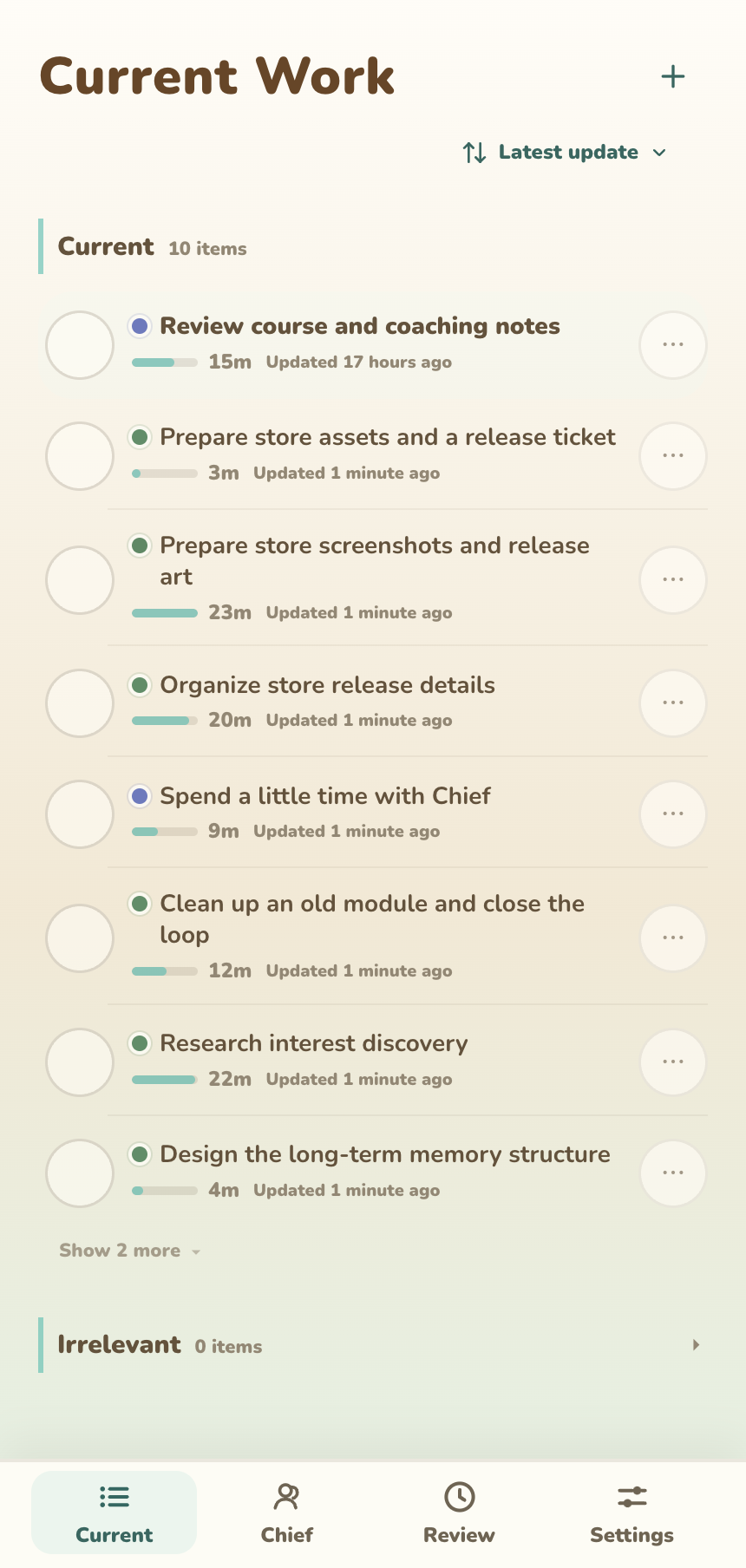
Current Work has one continuous list. Pinned and manual items lead and can be reordered by dragging; Chief’s organized records follow. More than seven automatic records collapse behind an expander. Completed, Previous, and Irrelevant stay in supporting groups.
| Action | Result |
|---|---|
| Select a title | Edit an inaccurate item name |
Pin |
Keep the item as work worth following |
Unpin |
Remove manual priority without deleting its records |
Complete |
Move it to Completed; completion can be undone |
Break down |
Ask the current AI source for smaller steps, then confirm them |
Irrelevant |
Move an automatic draft out of the active focus |
Top + |
Add one manual current item |
Automatic organization can misread work. Correct the title, pin what matters, complete what ended, and mark noise irrelevant. The draft is never the final decision.
The default cadence is 15 minutes; Settings > Recording can change it to 30 minutes. A cycle may update a title or invested time instead of creating a new item.
Automatic records sort by Recently updated by default; use Most invested when time spent is the better signal. The status at the top shows whether the latest records are ready, organizing, or failed.
Chief
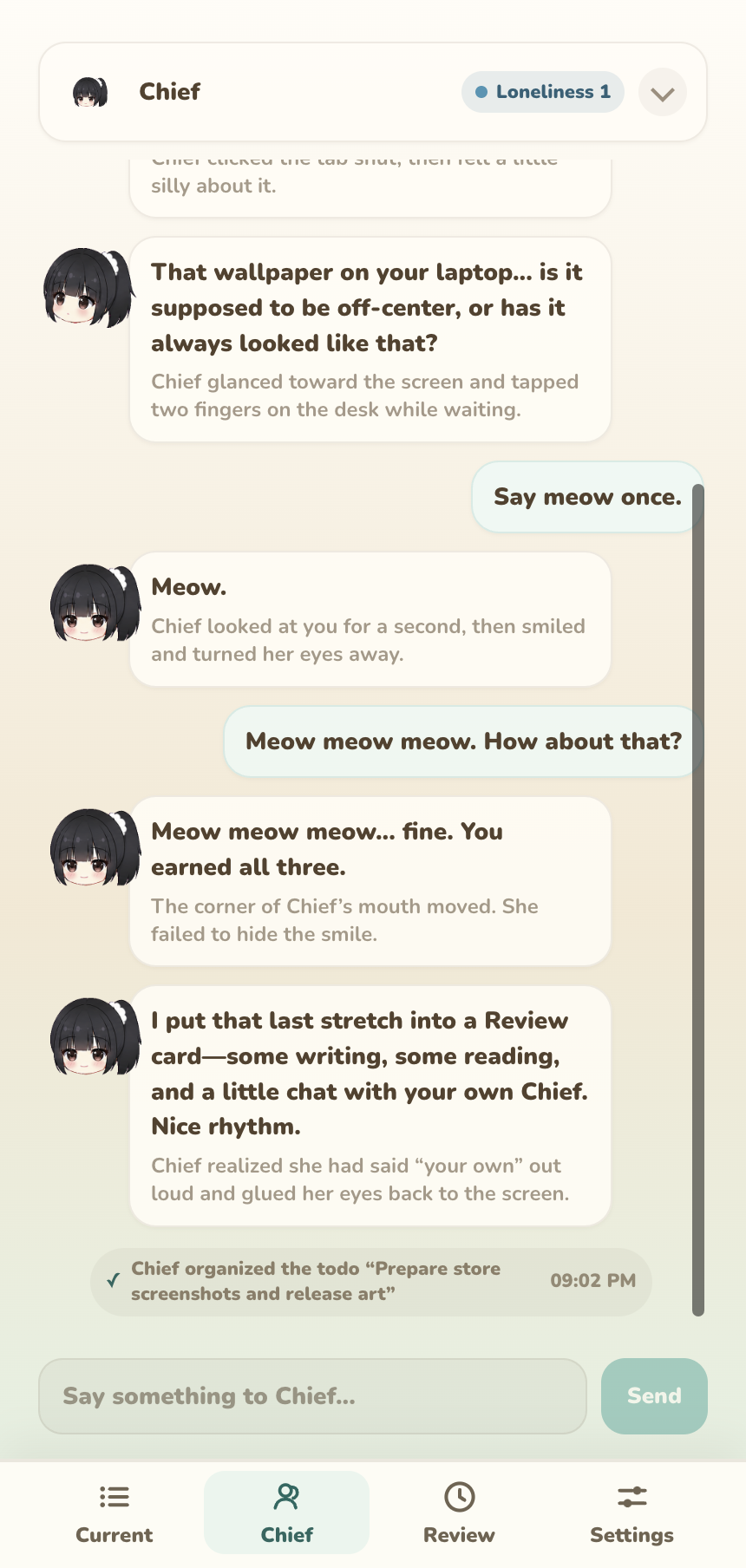
Expand the status card, read Chief’s short reactions, or chat from the input at the bottom. Chat history stays in the local workspace. Clearing chat does not delete Current Work or automatic records. The selected Cloud, BYOK, or Local source determines where a chat request goes.
Review
Review contains Items, Footprints, and Summary.
Items
Items groups archived work and invested time by date. It is a historical view; return to Current when work should continue.
Footprints
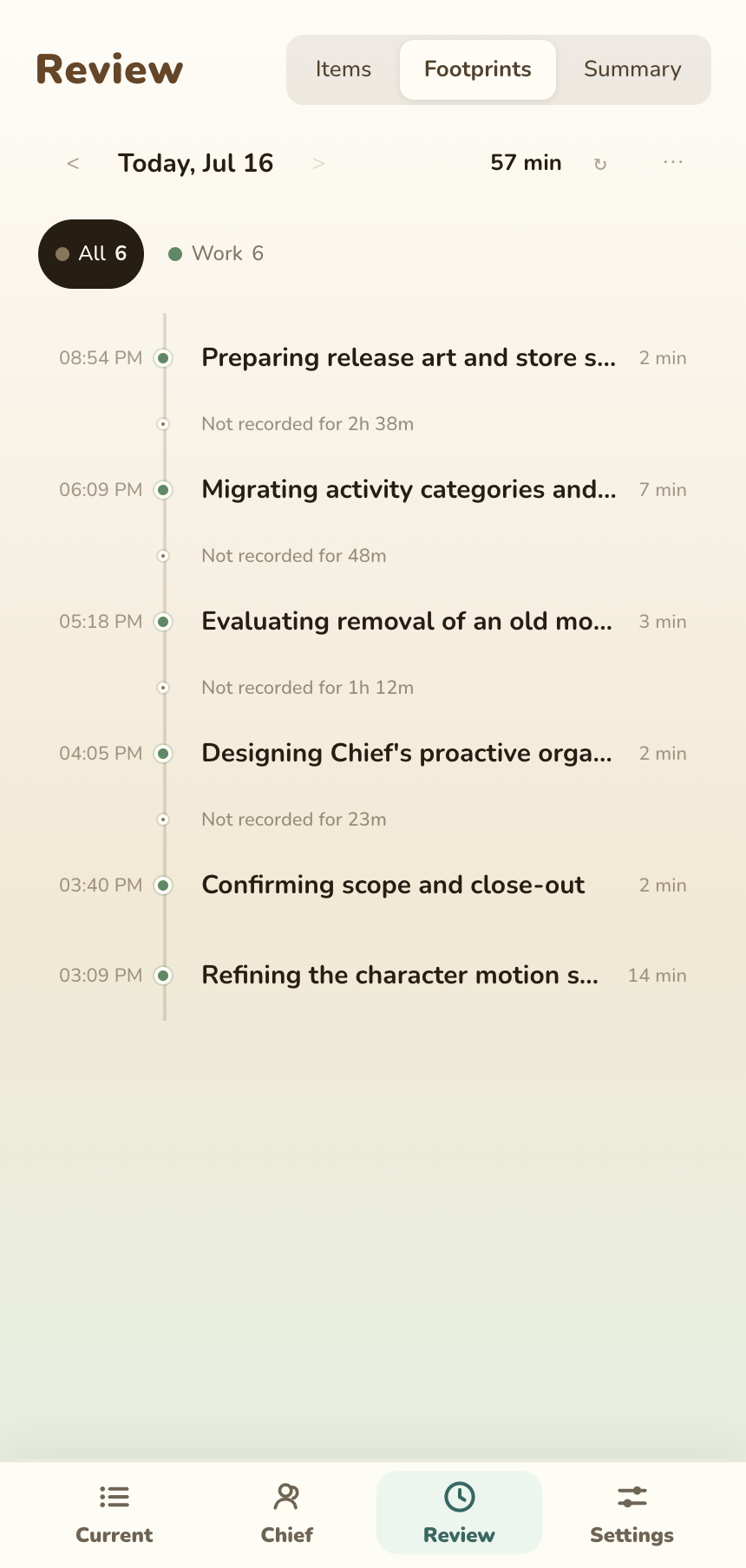
Footprints shows screen text that was read locally, cleaned, redacted, and organized into activity cards—not a screen recording. Filter by date and category, open a card for details, ask Chief to react, inspect where the segment was allocated, or reorganize that segment.
Hide this activity hides one activity. Delete this entire segment removes the local records for that batch and its related screenshot/text artifacts. Neither trains a model or removes Cloud billing records.
Summary
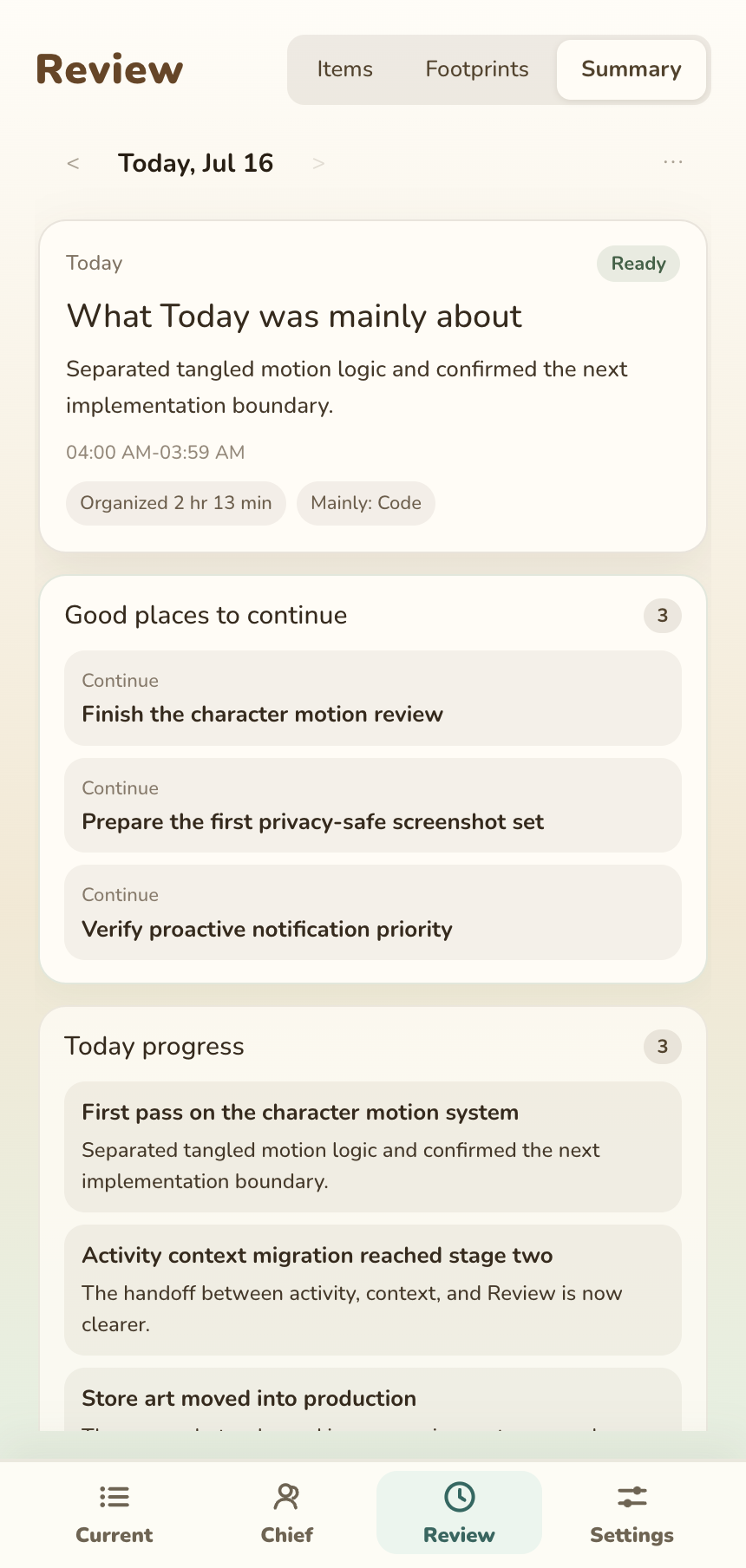
Summary can show the day’s main work, what to continue, completed progress, time allocation, activity rhythm, and the covered record range. Refresh or regenerate it after correcting the underlying records.
When results look wrong
- Confirm the time range exists in
Review > Footprints. - Hide, delete, or reorganize an incorrect segment.
- Edit Current Work titles and pin the work that should continue.
- Confirm automatic recording and record organization are running.
- Confirm the selected AI source works, then regenerate Summary.