Pocket ChiefHelpquick start
Check the build first
- macOS
1.2.12is the public Direct release for Apple Silicon / arm64. It is signed, notarized, and supports in-app updates. - Windows
1.2.12is an unsigned x64 public beta. Windows may show SmartScreen or “Unknown publisher”; updates are manual downloads. - Intel Mac is not currently supported. Steam remains unavailable while store review is pending.
Use the download cards for current links and SHA256 values.
Meet the two surfaces

- Desktop Chief: drag her, click for a small reaction, or right-click to open the workbench.
- Chief workbench: the bottom tabs are
Current,Chief,Review, andSettings.
Complete the five-part move-in
Move-in must finish before recording starts or the workbench opens. These screenshots show the macOS Direct path; Windows follows its in-app prompts, while Steam uses the current Steam account for Cloud.
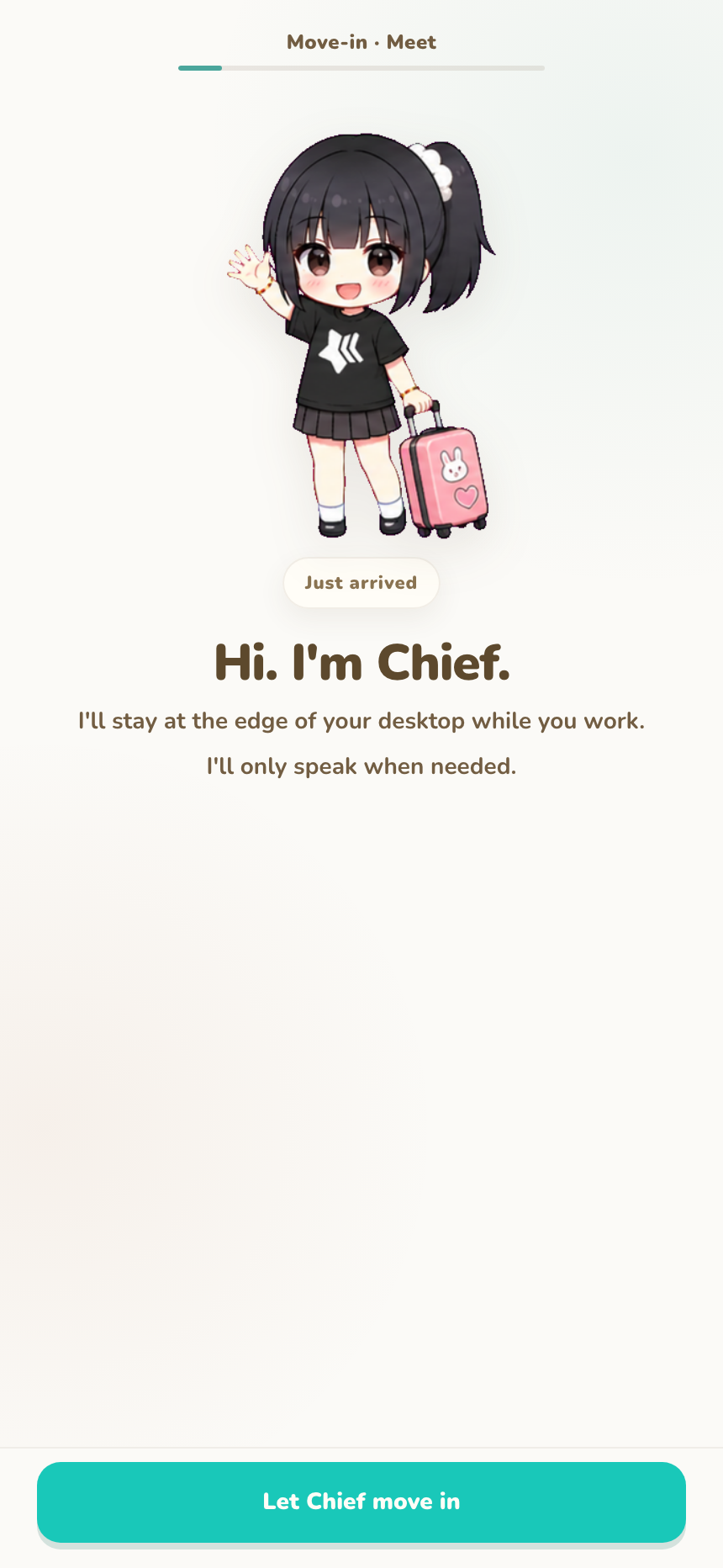
1. Meet and settle Chief
Meet Chief, then choose Let Chief move in.
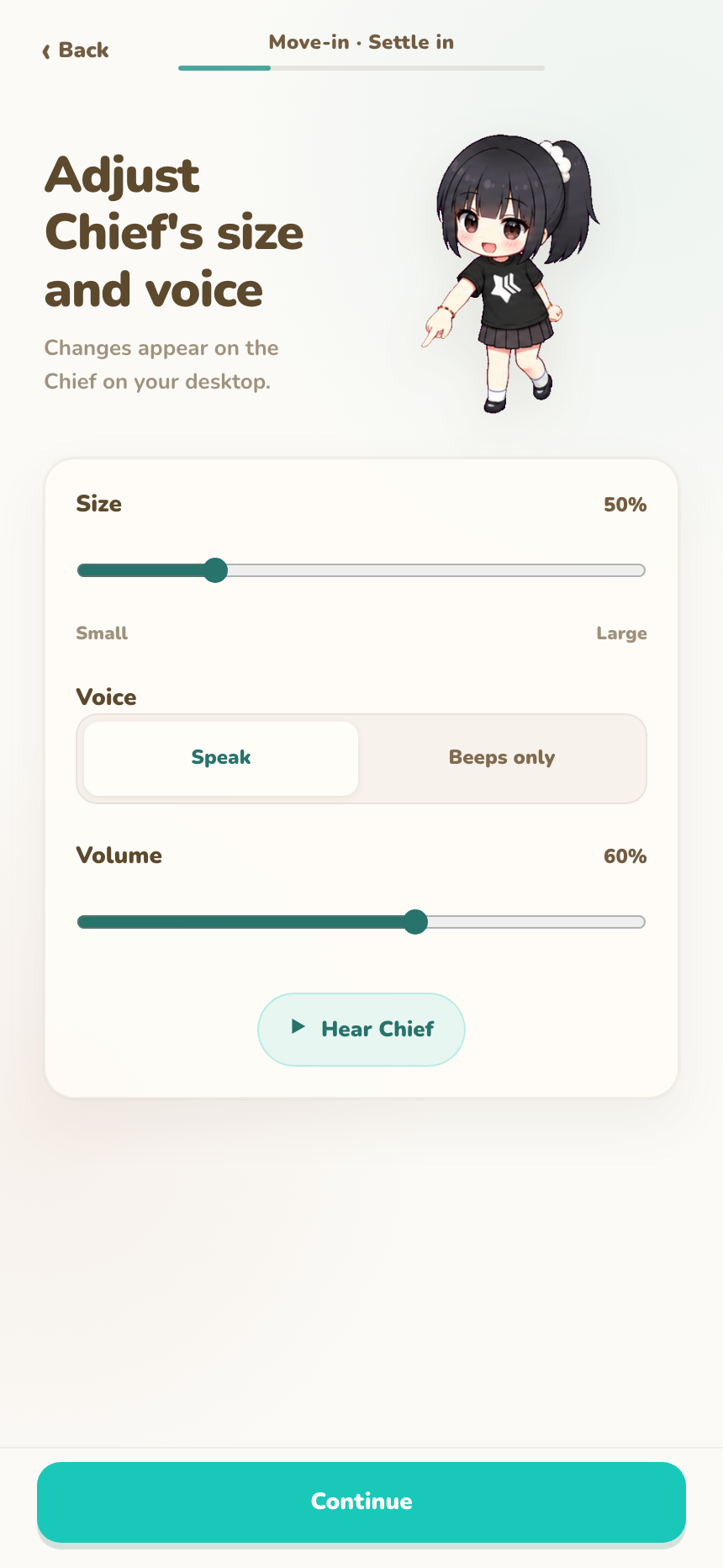
Adjust Chief’s size, voice mode, and volume for your desktop. Changes apply immediately and remain editable in Settings.
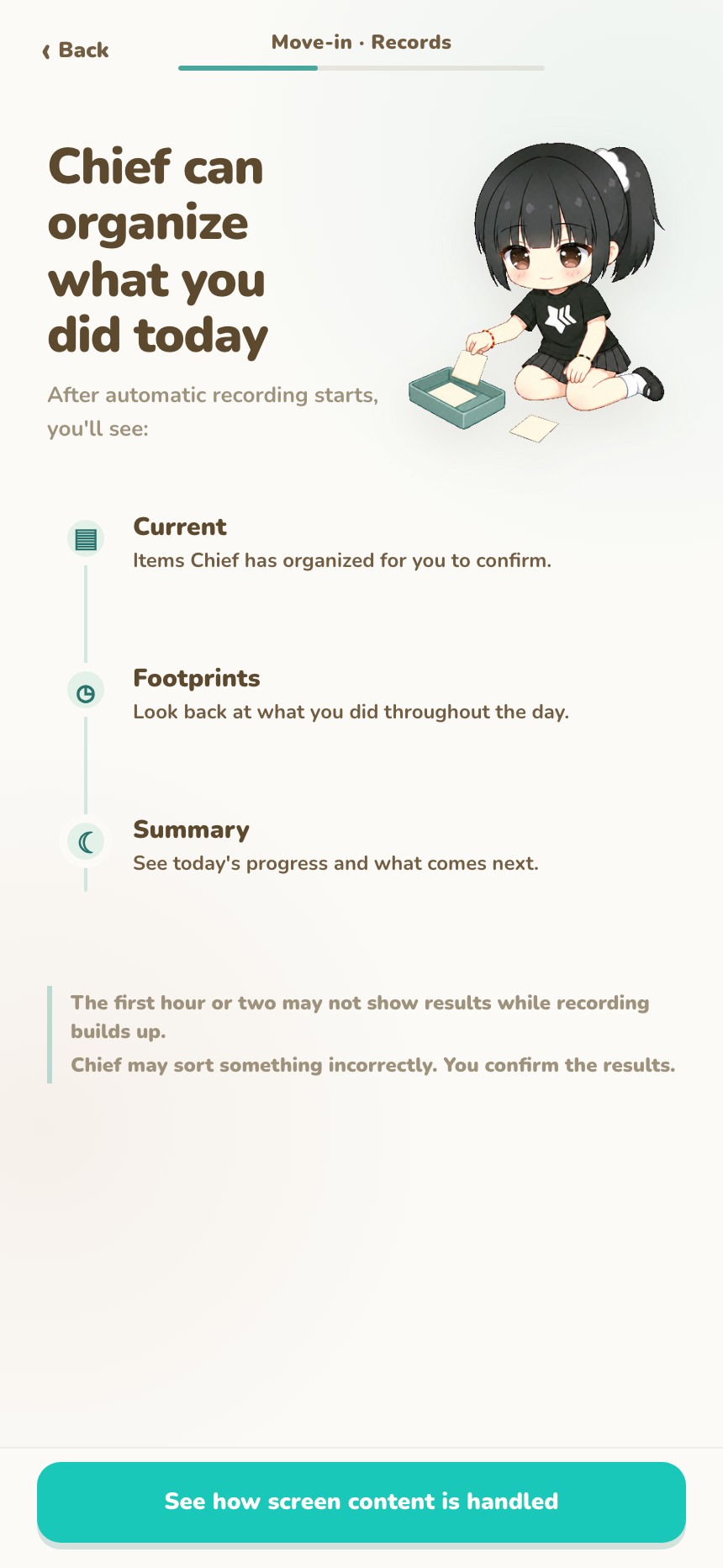
2. Understand automatic recording
Automatic recording turns the day into Current, Footprints, and Summary.
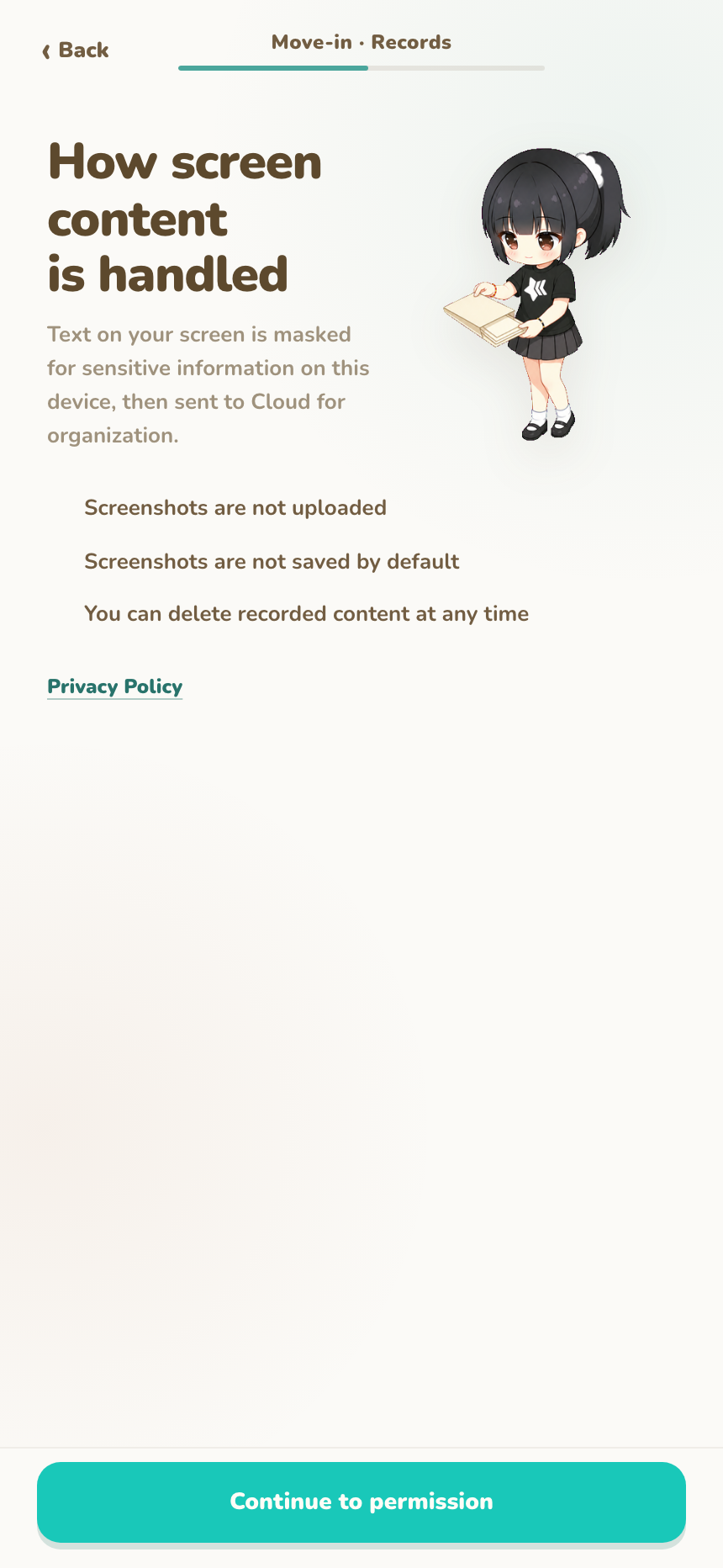
Screen text is read and cleaned on this computer before Cloud organizes it. Original screenshots are never uploaded and are not saved by default.
3. Allow screen-text reading
Accept the explanation to request the screen permission used by automatic recording.
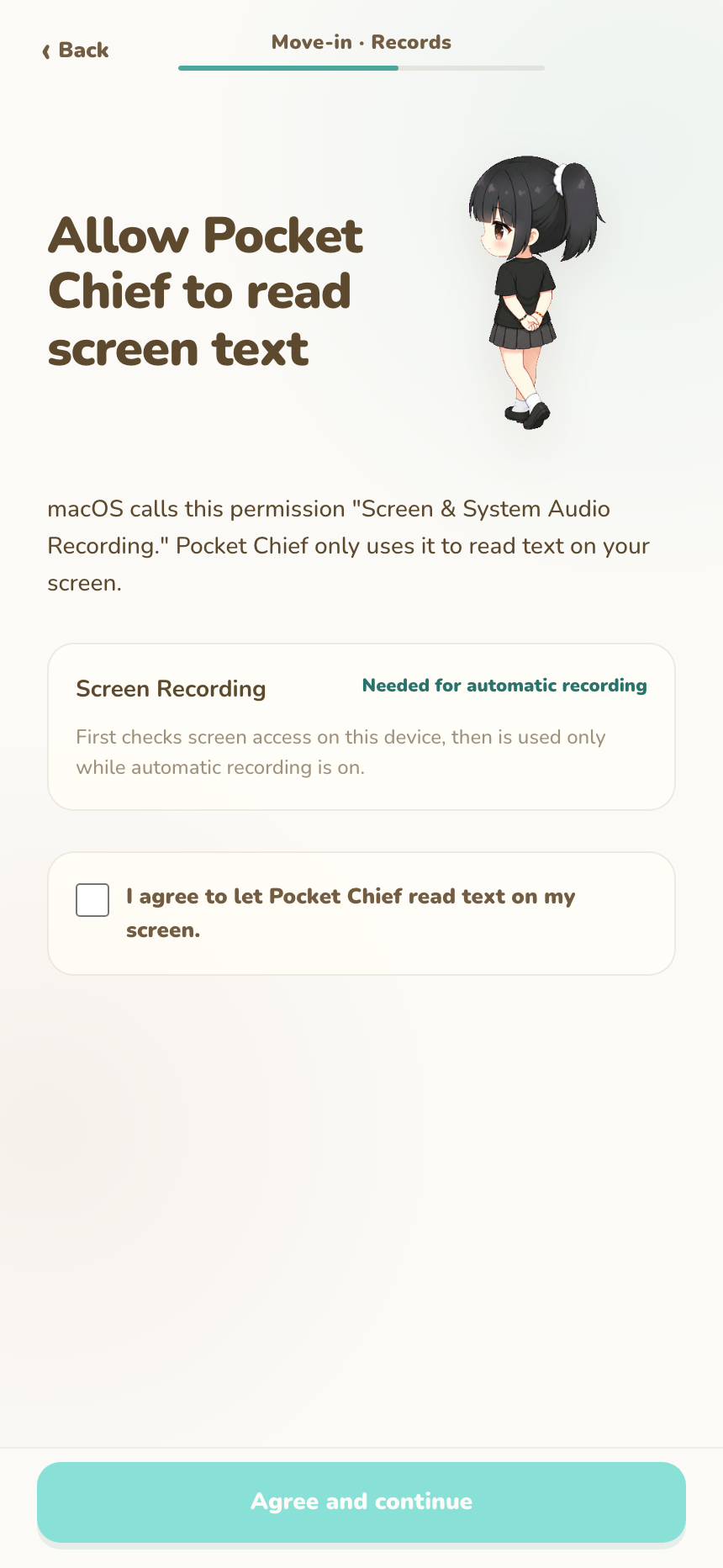
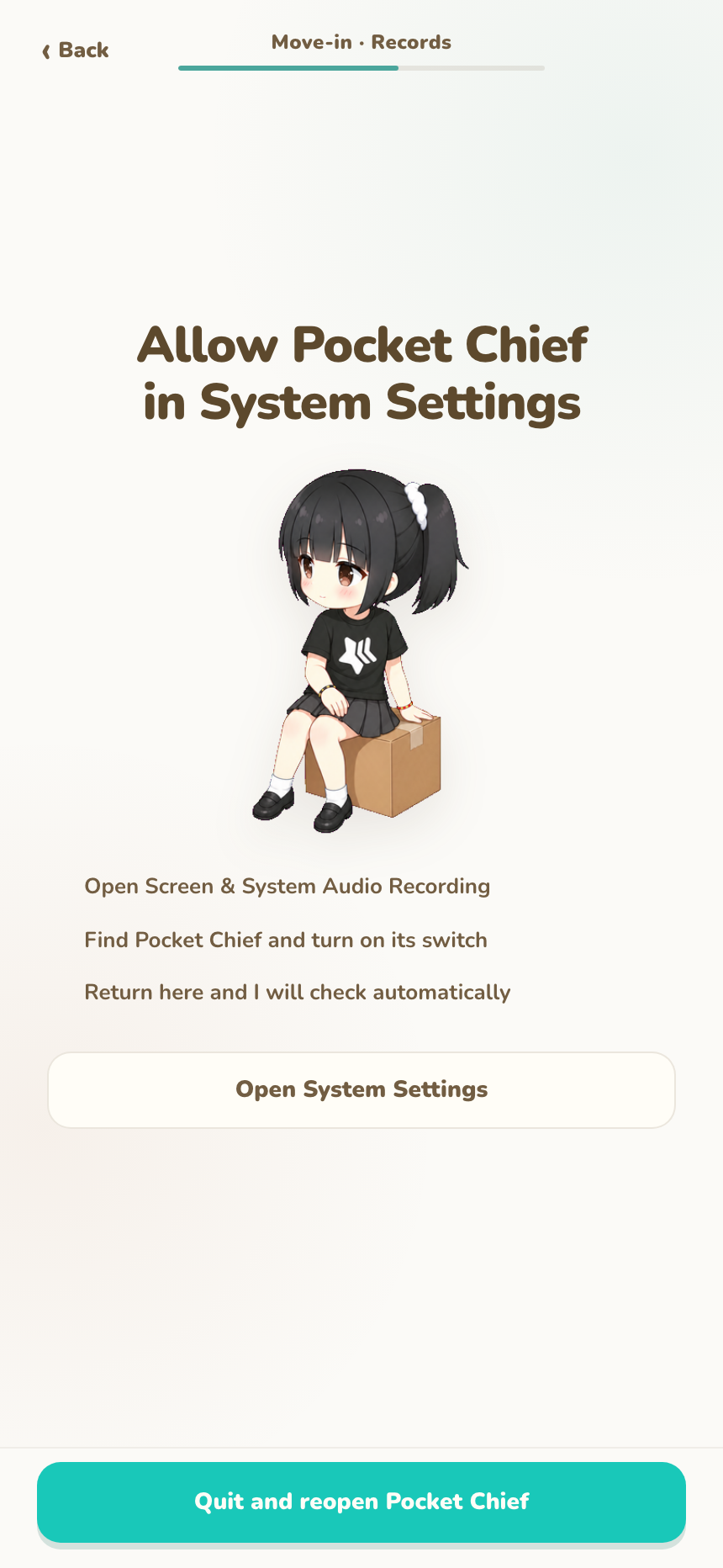
On macOS, open Screen & System Audio Recording, enable Pocket Chief, then return to the app. The check starts automatically; use the retry shown on the page if needed.
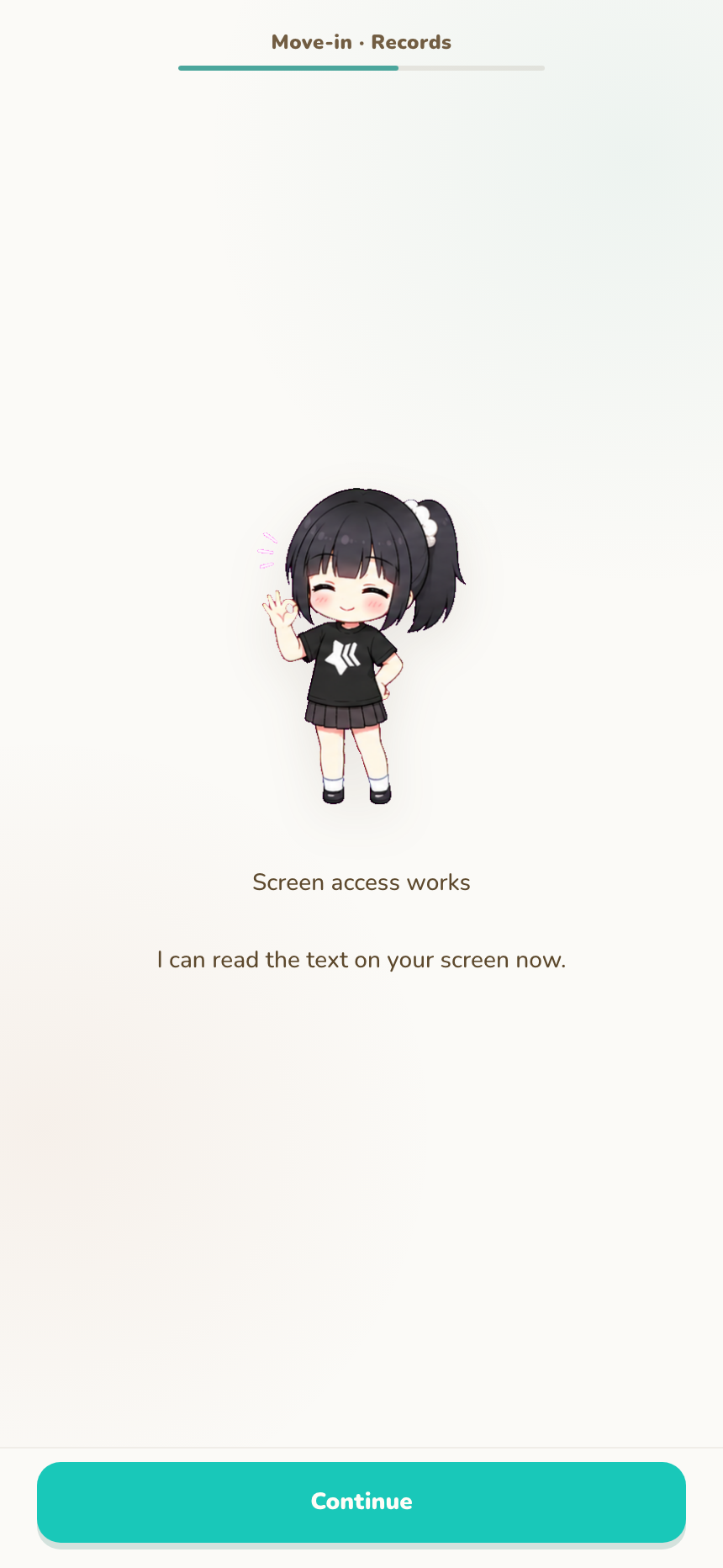
Continue after the page reports that screen reading works.
4. Connect Cloud
Direct uses an email address and a 6-digit code—no password. Steam uses the current Steam account.
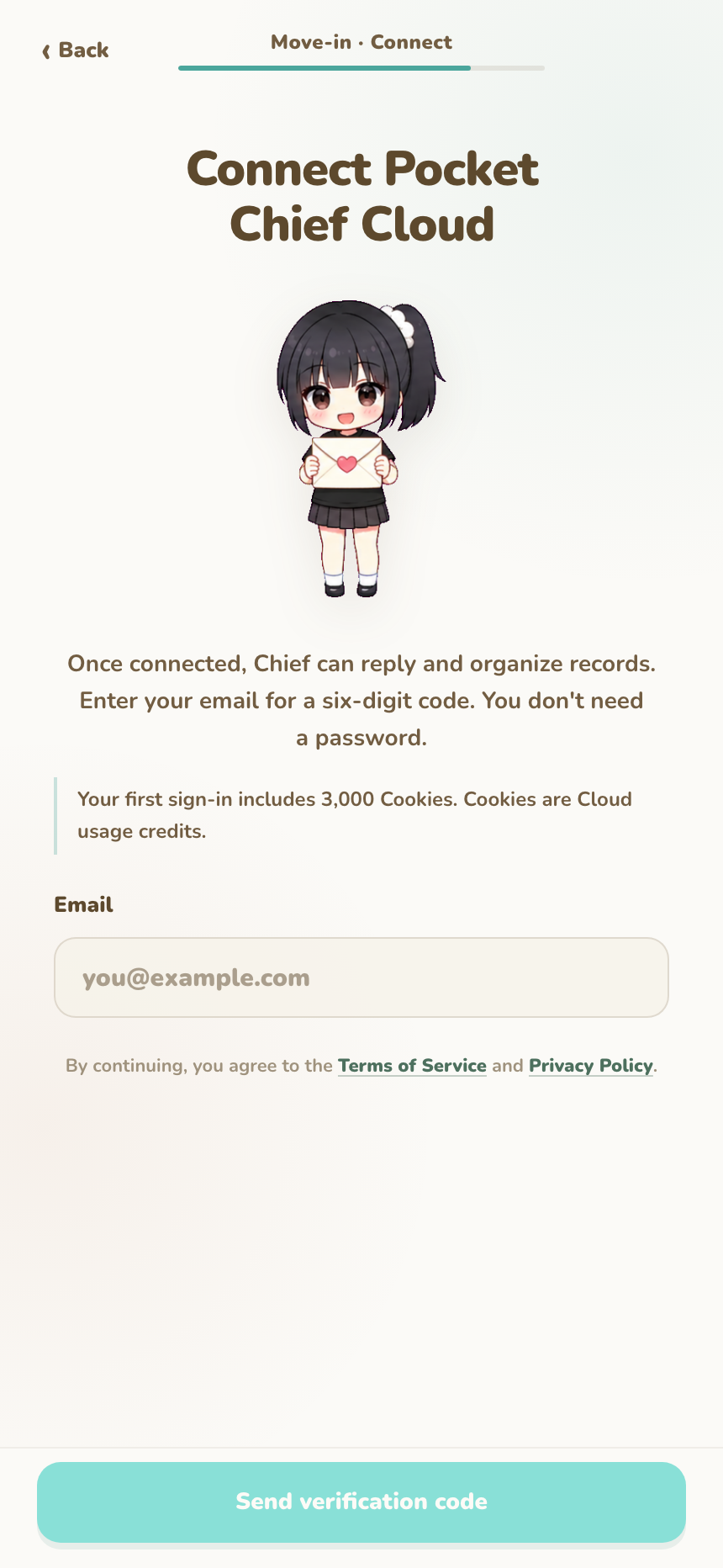
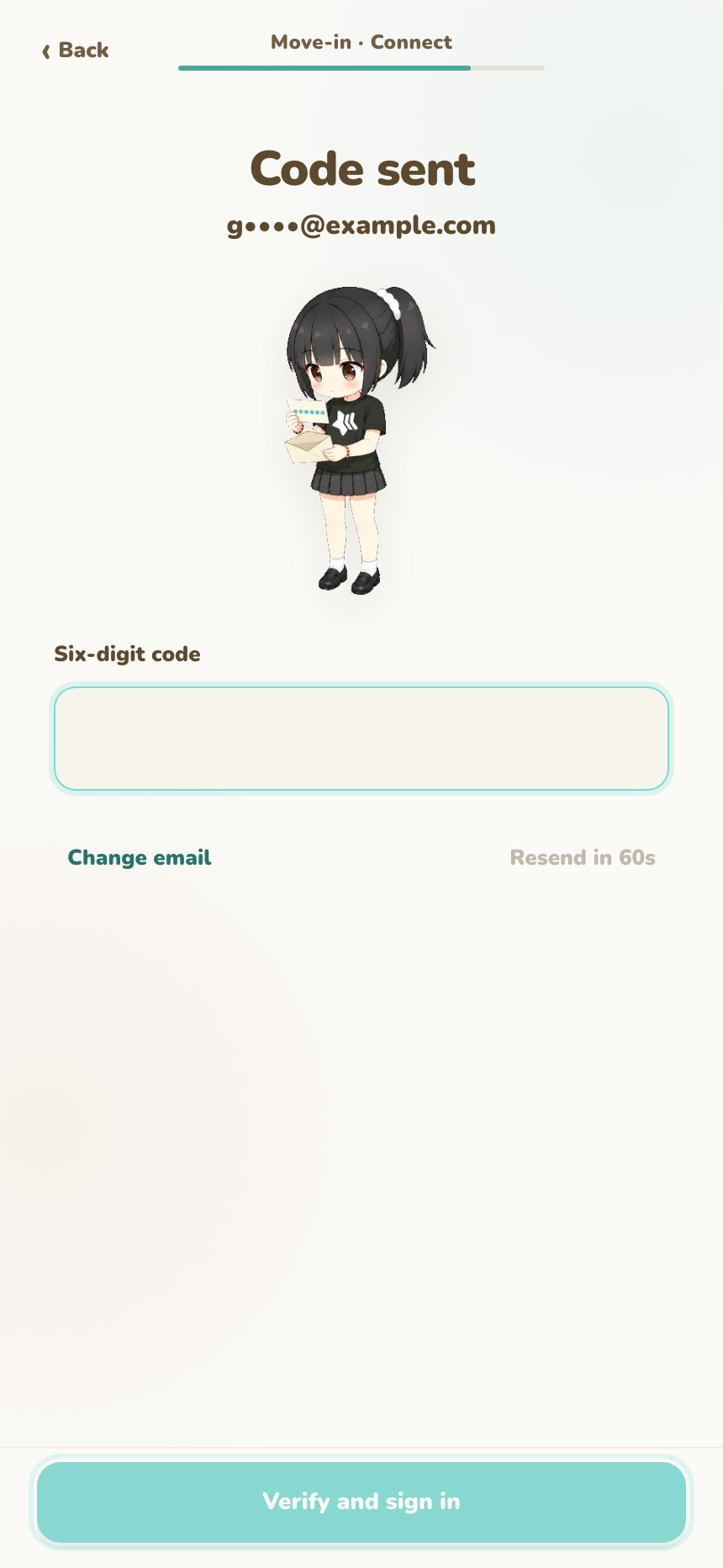
After the first successful connection, the account receives 3,000 Starter Cookies once. Direct and Steam accounts and Cookies stay separate and cannot be transferred.
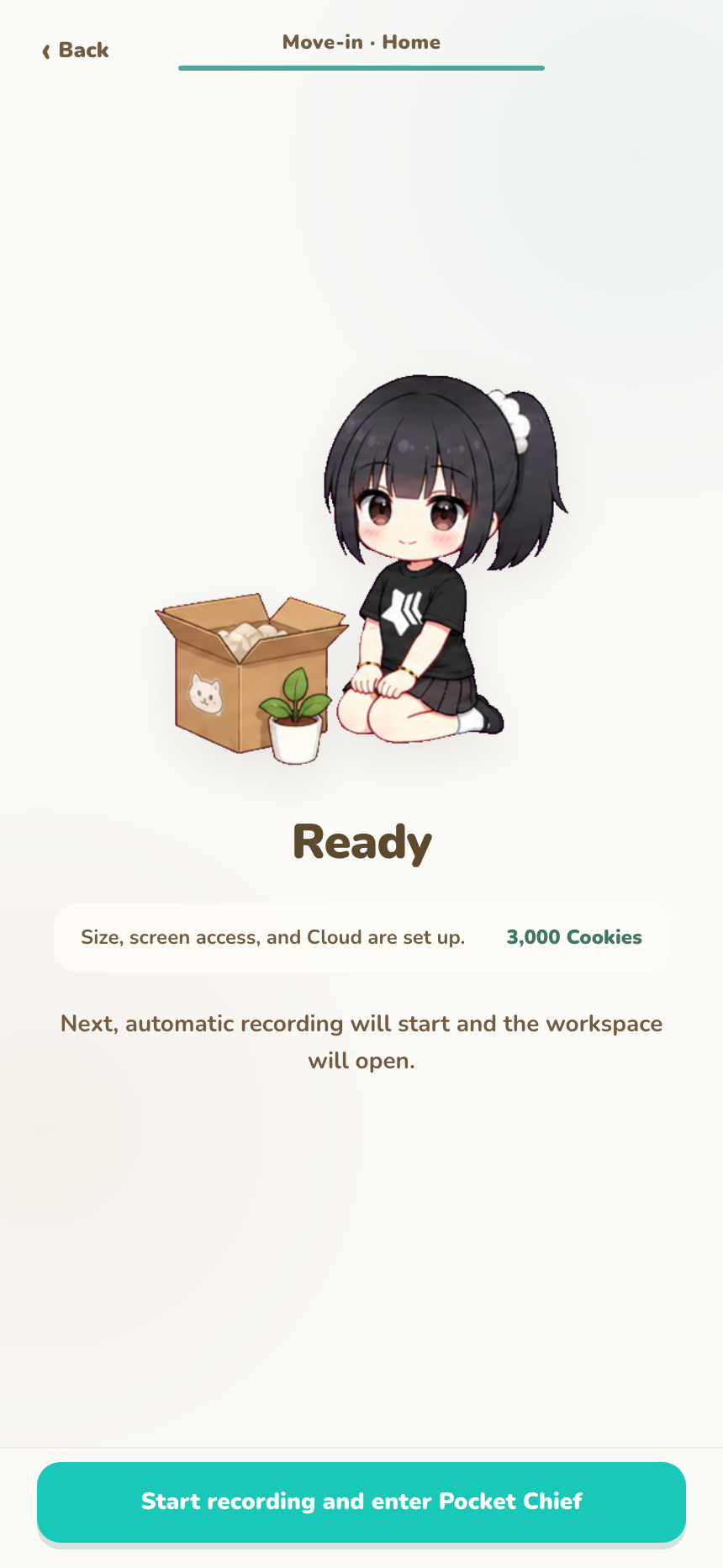
5. Start recording and enter the workbench
On the final page, choose Start recording and enter Pocket Chief. The workbench opens after automatic recording confirms that it has started.
What to do after move-in
- Use the computer normally. The first organized result may take an hour or two.
- In
Current, edit or pin work worth continuing and mark noiseIrrelevant. - Open
Review > Footprints, thenReview > Summary.
Screenshots remain set to Do not save unless you choose local retention in Settings > Recording. Cloud organization uses about 5 Cookies per run; BYOK and Local use the model service you configure after move-in.